Creating Your First WooCommerce Filter
After the plugin installation let’s add a product filter to your WooCommerce shop. Here are the ways to do it:
Automatic filter
- From v.3.3.4/v.1.3.4 use shortcode [woof_front_builder name=’My Filter’] to place filter into text widget, content part or any another place of your shop. This way you assemble a unique filter directly on the site front and set its options right there.
- This is the quickest way to set filter for the products, and by the way you will see it instantly on the shop page after the plugin installation
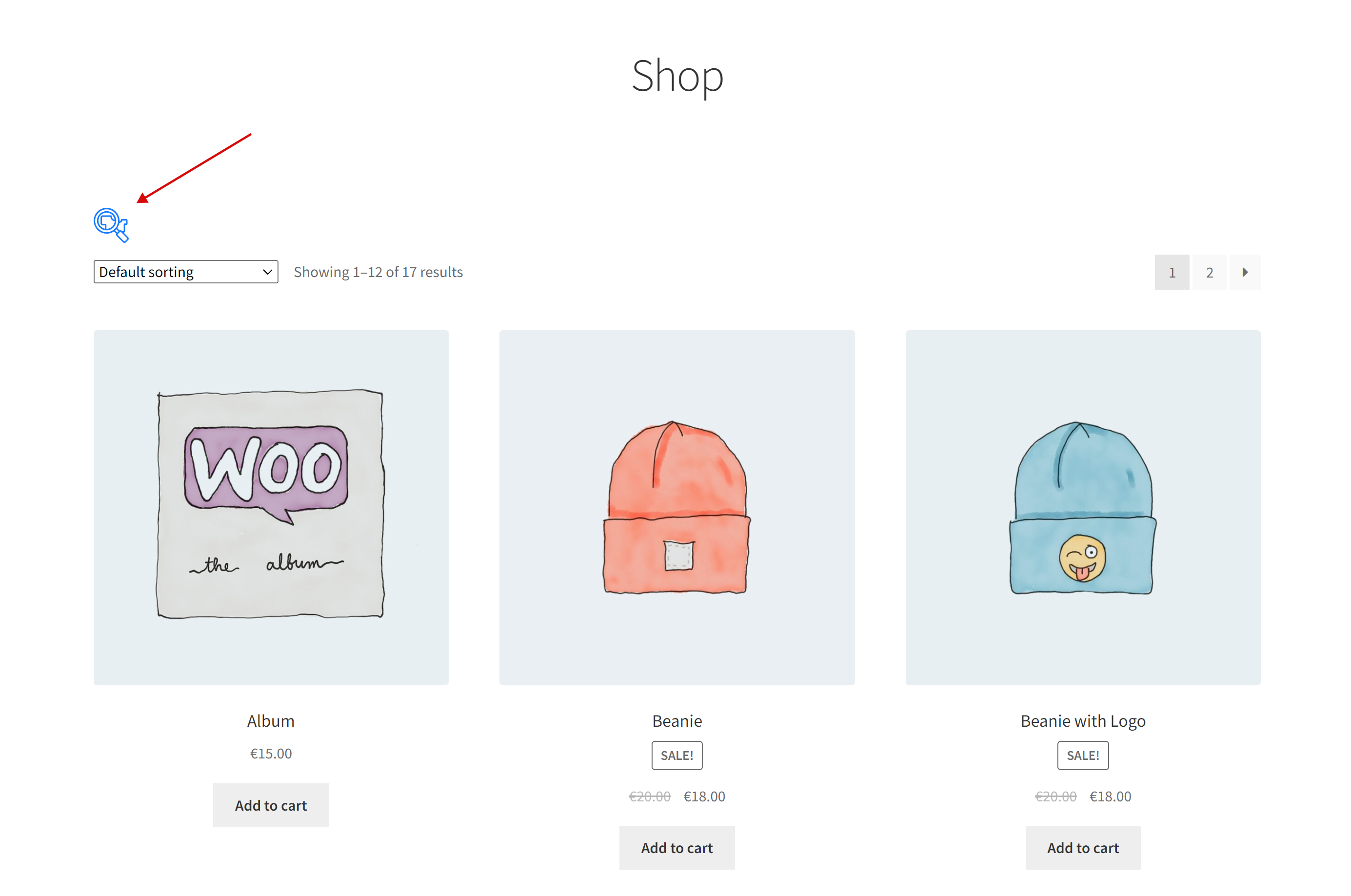
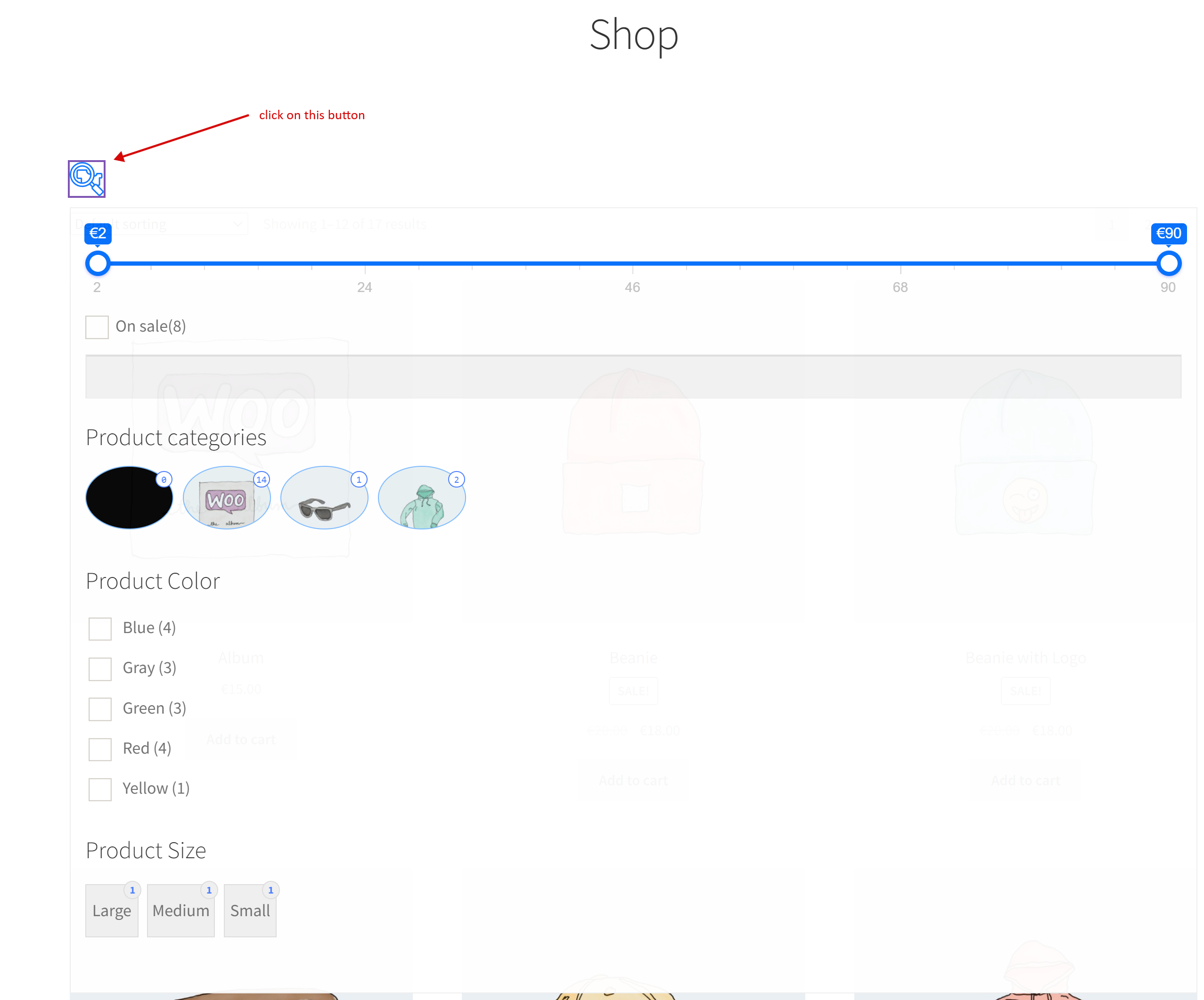
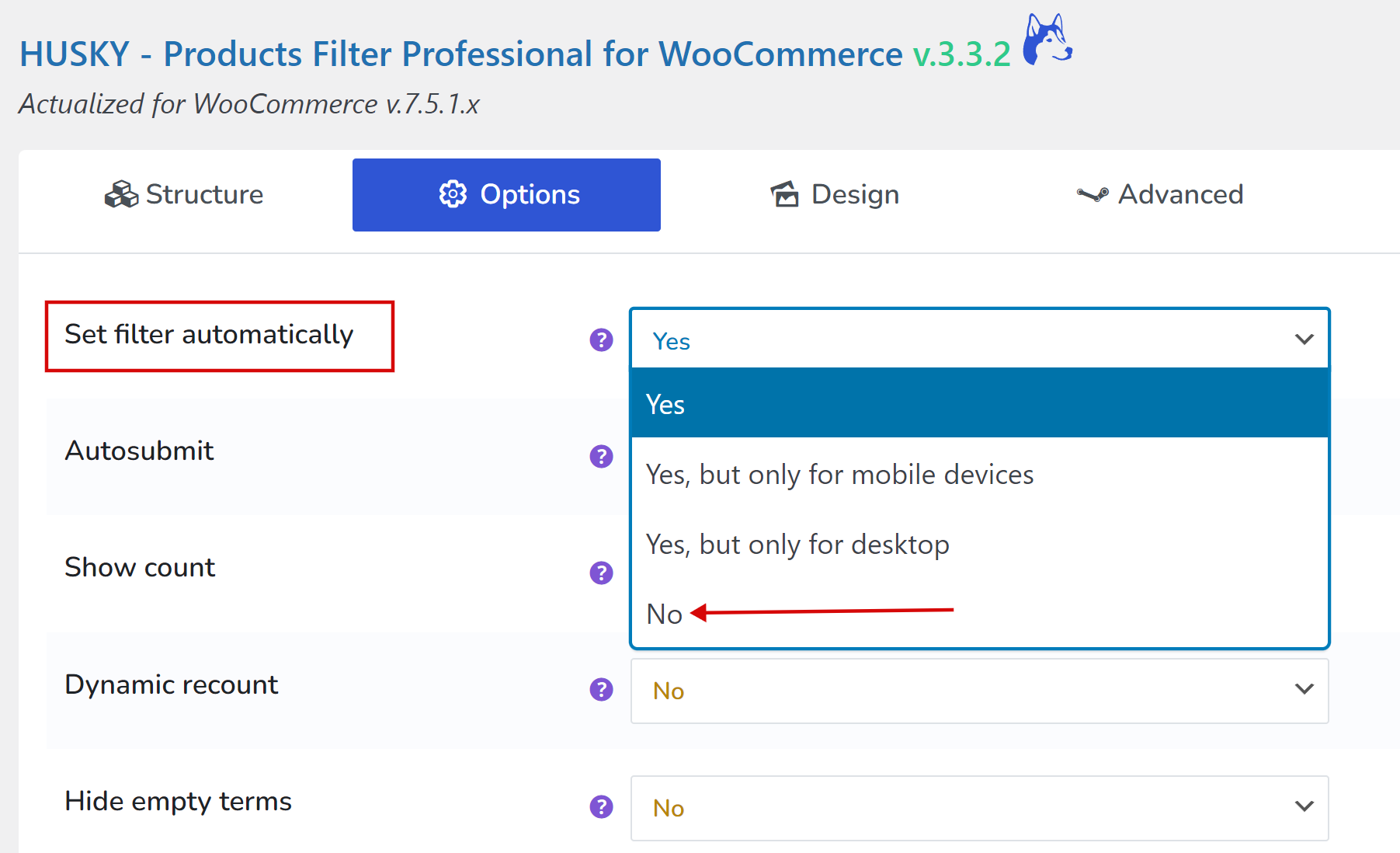
- If you want to disable automatic filter you can go to tab Options -> ‘Set filter automatically‘ select ‘No‘ there and then Save the settings. Also for your customers you can set this filter for some cases as: Show only for mobile devices OR Show only for desktop
Widget
- Go to the page Widgets
- Select sidebar you want to use
- Click on the plus-button there
- Type in the search textinput keyword ‘husky‘
- Click on the found widget icon
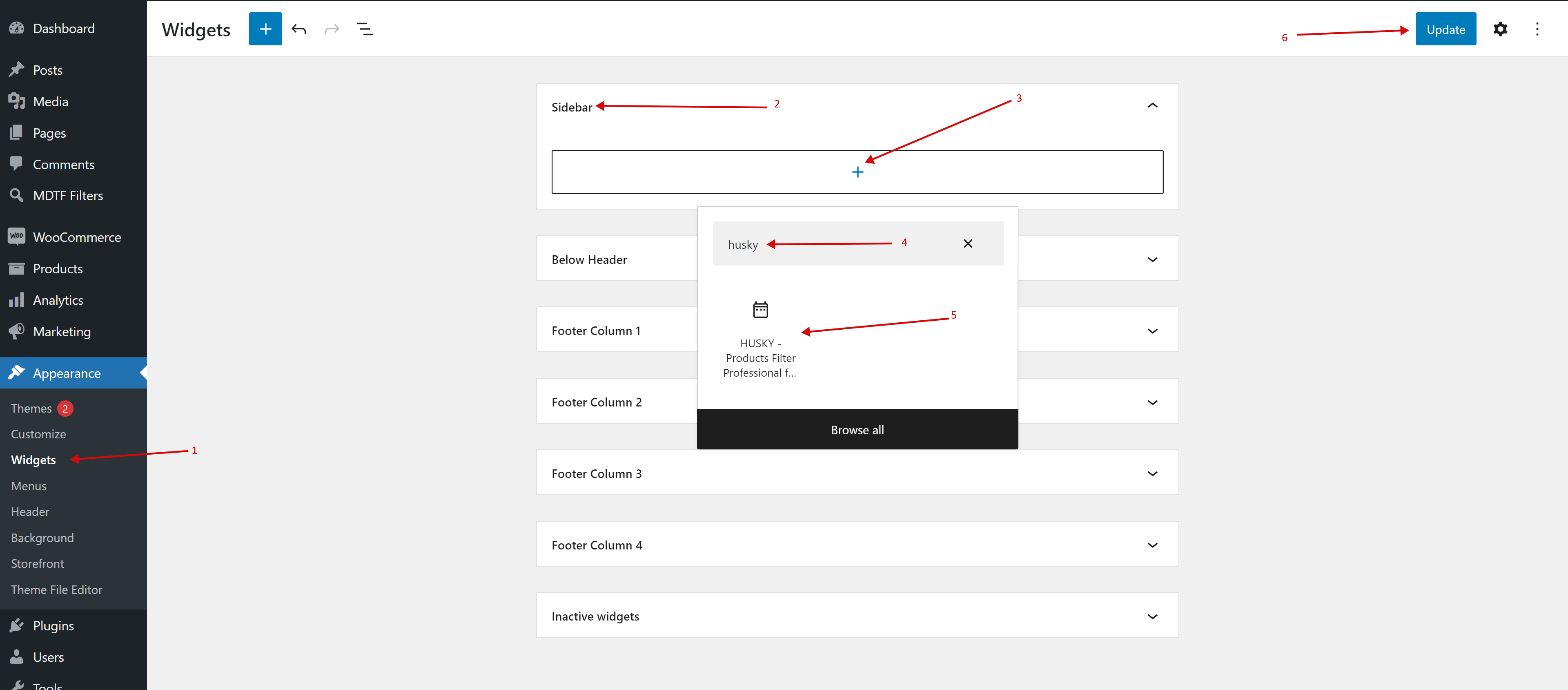
- Set options inside of the installed widget if necessary:
- Title – set your filter title or make it empty
- Additional text before – any text before the filter if necessary
- Redirect to – redirect link for your special filter page if it necessary by your shop business logic
- Hide search form by default and show one button instead – if you have big filter and you do not want to show it to your customers (or if its big and make page loading slower) select Yes for this option
- Dynamic recount – if enabled while user make filtering will be shown near filter elements actual count of products
- Autosubmit – it to select Yes filtering starts immediately if user changed any filter-item in the search form. If selected No – user should press Filter button
- Submit button position – where to show reset button of the filter
- Form AJAX redrawing – Redraws search form by AJAX, and to start filtering “Filter” button should be pressed. Useful when uses hierarchical drop-down for example
- Mobile mode – Hide the widget on a mobile device and a button appears to show the filter
- Press Update button of the Widget page
- Ready to go!
Shortcode
You can use shortcode [woof] in the text widget or at any place you want on your site where it is possible to set up it according to the possibilities of the current WordPress theme
Notice: remember, on the same page can be only one filter