[woof_quick_search_results]
输出快速搜索即时产品搜索的结果块。
需要激活的扩展:Quick Search
- per_page – 每页产品数
- template_result – 必须定义,并有5个预定义模板:list_1 | list_2 | list_3 | grid_1 | grid_2。也可以创建自定义模板(见下文)并使用。在当前WordPress主题中创建文件夹‘woof_qs_templates‘,将任意预定义模板放入其中(可在wp-content\plugins\woocommerce-products-filter\ext\quick_search\views\templates中找到),或者下载此自定义模板作为示例,按需自定义CSS,然后在template_result属性中写入类似‘custom/custom_1‘的值——其中第一个词必须为‘custom‘,然后是‘/‘和模板所在文件夹名称
- always_show_products –(1/0)如果为1则始终显示产品,如果为0则仅在发出搜索请求时显示产品
- template_structure – 可在模板中显示的5个字段。示例:img,title,price,sku,key_words —— 对网格模板部分生效。
- orderby – 默认排序方式(title-asc)。可选值:title-asc | title-desc | price-asc | price-desc
- header_text – 模板标题中的标题。默认值为空字符串。
示例:[woof_quick_search_results template_result=’grid_1′ always_show_products=1 per_page=9 template_structure=’title,img,price,key_words’ orderby=’price-desc’ header_text=”My Products”]
仅与短代码配合使用:[woof_quick_search] 并显示搜索结果
可用的钩子:
如何创建自定义模板:(面向高级用户)
- 下载此自定义模板
- 在当前WordPress主题中创建文件夹‘woof_qs_template‘
- 解压下载的文件并上传模板
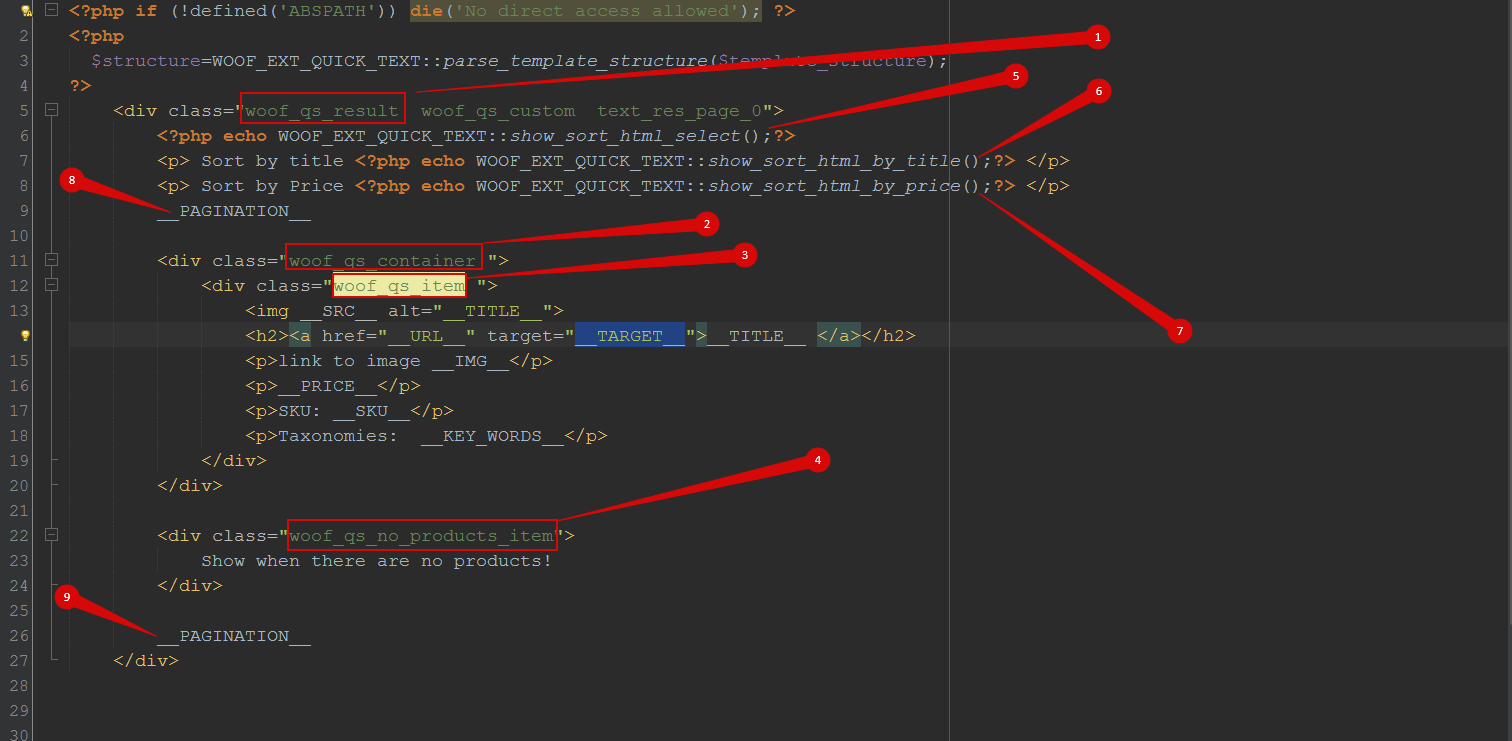
- 打开文件woof_qs_template/custom_1/output.php,根据需要修改其结构,当然也需要修改woof_qs_template/custom_1/css/custom_1.css中的CSS
- 模板中的特殊键和类:
- 1、2、3、4 —— 模板所需的类。woof_qs_result —— 包裹模板容器的类
- woof_qs_container —— 元素(产品)必须插入的容器类
- woof_qs_item —— 项目类(产品)
- woof_qs_no_products_item —— 搜索无产品时的项目类
- 5 —— 以下拉菜单形式按价格和标题显示排序
- 6 —— 按标题显示排序
- 7 —— 按价格排序
- 8、9 —— 显示分页
- __SRC__ —— 在<img />标签中生成‘src‘属性及其值。示例:src=’http://site.com/uploads/image.png’
- __IMG__ —— 生成产品图片
- __URL__ —— 产品页面的URL
- __TARGET__ —— 链接的target值,可为_self或_blank(在新标签页中打开)
- __TITLE__ —— 产品标题
- __PRICE__ —— 产品价格
- __SKU__ —— 产品SKU
- __KEY_WORDS__ —— 产品中包含的分类法名称(也用于基于文本的搜索)