How to Speed Up WooCommerce Product Filtering on Large Catalogs with HUSKY
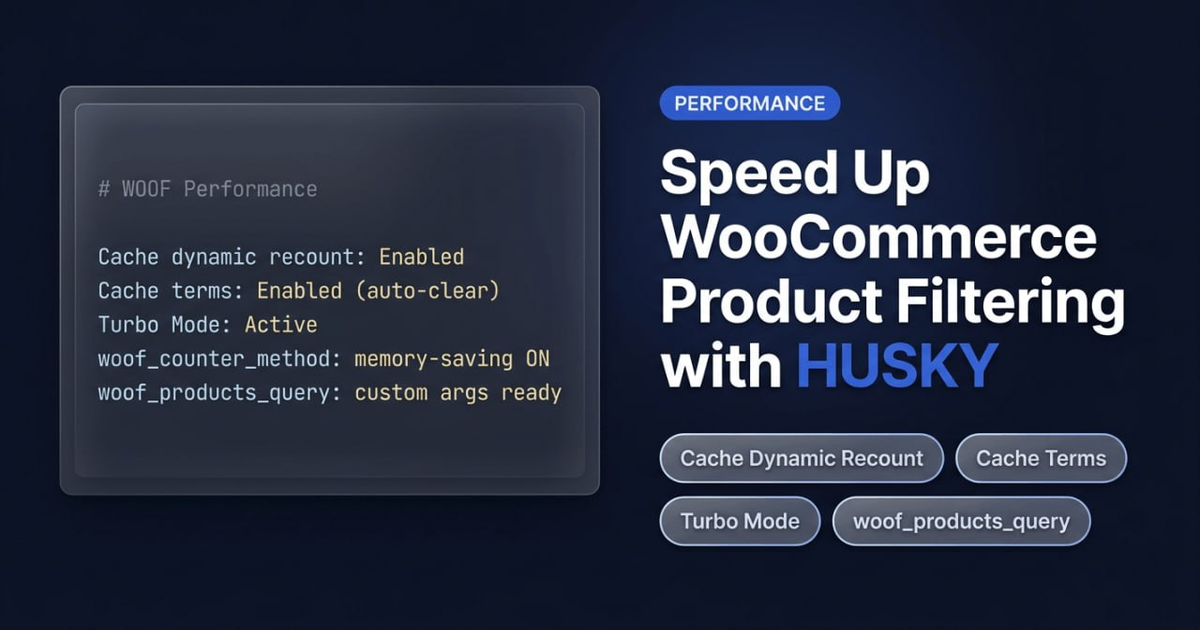
When a WooCommerce store grows beyond several thousand products, the product filter can become a bottleneck. Each taxonomy term needs a count query, each attribute adds a join, and dynamic recounting multiplies the database work. HUSKY (formerly WOOF) includes several built-in caching mechanisms and hooks designed specifically for large catalogs.
Enable Cache Dynamic Recount
In HUSKY → Advanced → Options you will find the setting Cache dynamic recount number for each item in filter. When enabled, HUSKY stores the recount results for each term in the WordPress options table or as a transient, so subsequent page loads skip the counting queries entirely. This is the single most effective toggle for stores using Dynamic Recount with many taxonomy terms.
The cache is cleared on a schedule, not on product changes. The interval is set by the auto-clean option next to the cache setting (the default expiry is one week). After adding or importing a batch of products you can flush it manually with the clear cache button in the admin panel.
Enable Cache Terms
Next to the recount cache is the Cache terms setting. When the filter form contains a large number of terms (hundreds of product categories, attributes, or tags), this option caches the rendered term list so the HTML does not need to be rebuilt on every page load.
It works the same way as the recount cache: cleared on a schedule, with its own auto-clean interval and a clear terms cache button in the admin. For stores with deeply nested category trees or many attribute values, enabling both caches together reduces the per-request database load substantially.
Use Turbo Mode for Pre-Generated Product Data
Turbo Mode is the most powerful optimisation HUSKY offers for large catalogs. When enabled, it pre-generates a JSON data file with product parameters. Instead of building and executing complex WP_Query + tax_query + meta_query on every filter request, the plugin reads pre-computed data — on large catalogs the difference in response time is substantial.
Turbo Mode is configured under HUSKY → Extensions → Turbo Mode. The file regeneration can be scheduled via WordPress cron or, for reliability, via a real server crontab (see the FAQ on Turbo Mode cron setup).
Adjust the Turbo Mode Product Limit
By default Turbo Mode processes up to 15,000 products during cache generation. On stores with more products, the generation stops before all products are indexed. Use the woof_turbo_mode_products_limit hook to raise this limit:
add_filter('woof_turbo_mode_products_limit', function($limit) {
    // Increase limit for catalogs larger than 15,000 products
    return 50000;
});
The hook is located in ext/turbo_mode/index.php. Set the value high enough to cover your entire catalog, but be mindful of PHP execution time and memory limits during file generation.
Optimize the Counter Method for Large Sites
The dynamic recount system uses a WP_Query-based counter that can consume significant memory on stores with many products. The woof_counter_method hook (source: classes/counter.php) lets you switch to a lighter counting method that sets nopaging=false and posts_per_page=1, reducing per-query memory:
add_filter('woof_counter_method', function($saving_memory) {
    // Enable memory-saving counter mode
    return true;
});
Test this on your staging site first — it works well on some configurations but not all.
Customize the Products Output with woof_products_query
The woof_products_query filter hook (source: index.php) passes the $query_args array of the [woof_products] shortcode before its WP_Query runs. Use it to add custom meta queries, exclude certain products from the output, or adjust the query structure:
add_filter('woof_products_query', function($query_args) {
    // Exclude products that should never appear in filter results
    $query_args['meta_query'][] = array(
        'key'     => '_exclude_from_filter',
        'compare' => 'NOT EXISTS'
    );
    return $query_args;
});
For taxonomy-level manipulations (changing relation operators between taxonomies), use the related woof_main_query_tax_relations hook.
Enable WordPress Object Cache for Filter Data
HUSKY supports the woof_use_wp_cache hook to route its internal data through the WordPress object cache. If you already use a persistent object cache backend (Redis, Memcached), enabling this hook moves filter data out of the database and into fast in-memory storage:
add_filter('woof_use_wp_cache', function($is){
    return true;
});
Important: This hook has no effect without a persistent object caching plugin installed. It is not a replacement for the built-in cache settings — it complements them when your hosting environment supports object caching.
Combine Settings for Best Results
The recommended baseline for a large catalog (10,000+ products, many taxonomy terms):
- Enable Cache dynamic recount and Cache terms in Advanced → Options
- Enable Turbo Mode and set the product limit to match your catalog size
- Apply
woof_use_wp_cacheif a persistent object cache is available - Test
woof_counter_methodon staging to see whether memory saving mode works for your setup - Use
woof_products_queryonly when you need to adjust the [woof_products] output query
Start with the two built-in cache toggles — they require no code changes and deliver the most noticeable improvement on their own.